Some important notes before you begin
IMAP email access coordinates between the server and your mail application. Messages that have been read/deleted/replied to will show up as such, both on the server and in the mail application.
POP3 does not coordinate with the server. Messages marked as read/deleted/replied to in the mail application will not show up as such on the server. This means that future mail downloads with POP3 will show all messages as unread.
Outgoing mail is sent using SMTP.
We recommend using POP3 over SSL/TLS or IMAP over SSL/TLS since they provide increased security for your interactions with the remote mail server.
cPANEL: How to find email settings on cPanel?
1/ Please log in into your hosting panel
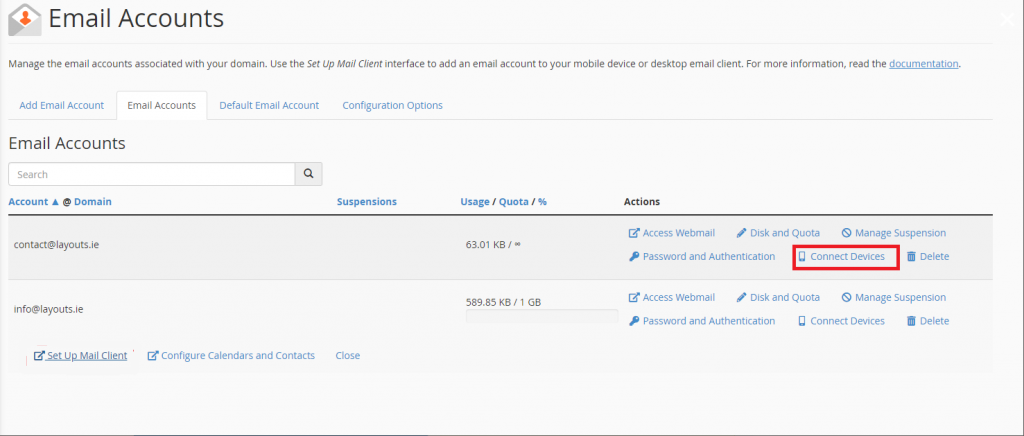
2/ Go to Email Accounts (Click the email accounts icon in the icon menu).
3/ Click Connect Devices
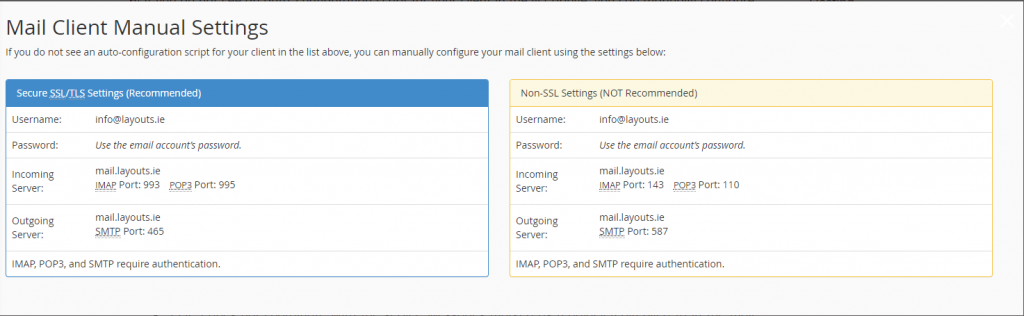
This should bring you into a page with Mail Client Manual Settings. You should have two boxes, one in Blue and the other one in Orange. The blue one should have the header Secure SSL/TLS Settings (Recommended). For the set up we will be using the details in this box.
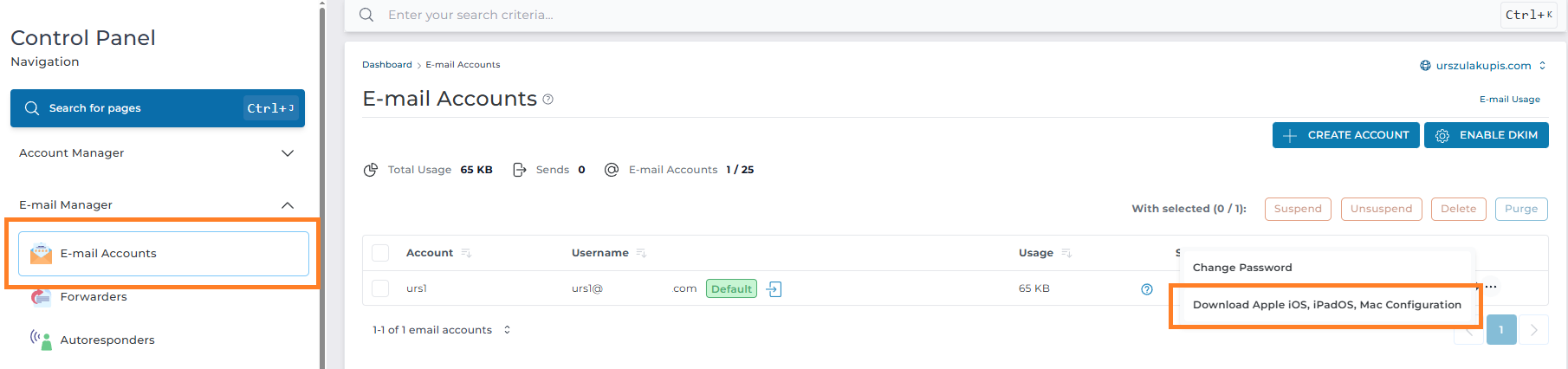
DIRECT ADMIN: How to find email settings on DirectAdmin?
- IMAP Port: 993
- POP3 Port: 995
- SMTP Port: 465
- IMAP Port: 143
- POP3 Port: 110
- SMTP Port: 587
If you experience any issues, please send a screenshot of the error to: [email protected]